Free
Snap and vanish, on us.
Free
- Dust effect on Meet and Zoom
- Snap, shortcut and button triggers
- On-device, private
CHROME EXTENSION · FREE · RUNS ON YOUR COMPUTER
Snap your fingers on a video call and you turn to dust. Everyone sees the empty room behind you, and your mic mutes. Snap again and you're back.
HOW IT WORKS
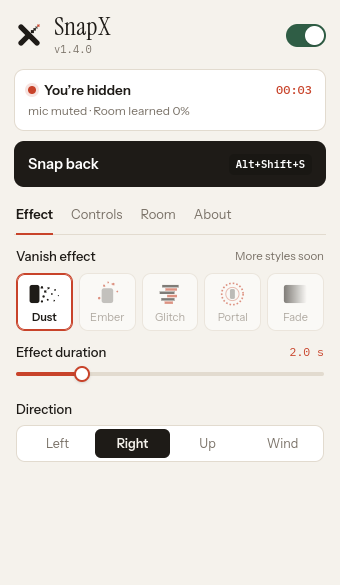
Click Learn room and step out of view for 3 seconds. SnapX remembers what's behind you, and on-device AI fills in any spot you always cover.
Snap your fingers where the camera can see your hand. You break into thousands of particles and drift away. Your mic mutes.
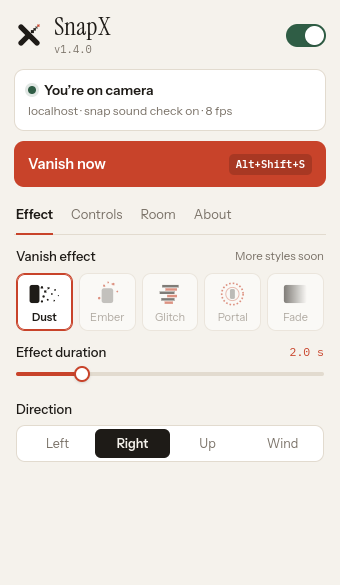
Snap again and the dust flies back into you. Your mic unmutes, unless you were already muted.
No hand free? Press Alt Shift S or click Vanish now in the popup.
WORKS WHERE YOU MEET
SnapX hands your call a processed copy of your camera, so it works inside the call apps you already use in Chrome. No plugins, no virtual camera, no new app.
Chrome on desktop only. The Meet, Teams and Zoom desktop and phone apps aren't supported.
THE CONTROLS
PRIVACY
Hand tracking, person cutout and room rebuild all run locally in Chrome.
Video, audio and your room picture are processed only on your device. If you're signed in, SnapX checks your plan with our server, and that's all it sends.
Storage for your settings, and an offscreen page to run the AI. It only runs on the call sites it supports.
EFFECTS
Thousands of particles drift away on the wind.
Burn away into glowing sparks.
Break up into scan lines and static.
Step through a ring and you're gone.
A quiet, slow fade to the empty room.
All five effects are live. Dust is free on Meet and Zoom; Ember, Glitch, Portal and Fade come with Pro and Max.
UNDER THE HOOD
The camera sees thumb and middle finger snap together, and the mic hears the click at the same moment.
On-device segmentation (MediaPipe). HD uses MODNet on your GPU for cleaner hair and edges.
Every pixel you don't cover builds a picture of the room. AI inpainting (MI-GAN) fills the rest.
The rebuilt room is re-coloured every frame to your webcam's exposure and white balance, so no ghost is left.
A WebGL effect splits you into about 26,000 particles.
While you're hidden, the audio sent to the call is silent, even if the meeting's own button can't be found.
GET SNAPX
One click to add. It updates itself.
HELP
Open Meet, Teams, Zoom or X in Chrome, then open the SnapX popup on that tab. No reload is needed.
Turn your camera off and on in the meeting.
Keep your hand in view, a little away from your face. Raise sensitivity, or turn off the click-sound check if your mic is quiet.
Lower the sensitivity and keep the click-sound check on.
Open the Room tab, click Learn room, and step out for 3 seconds. Plain walls work best.
Your computer has no GPU path (WebGPU). Fast is used automatically. Try turning on graphics acceleration in chrome://settings/system.
Turn on graphics acceleration in chrome://settings/system and relaunch Chrome.
The meeting may have changed its layout. SnapX still silences your audio itself.
Still stuck? Open the SnapX popup → About → Copy diagnostics, and send it to us.
Diagnostics contain technical details only, never images or audio.
PRICING
Dust on Meet and Zoom is free forever. Pro and Max unlock all five effects, Teams and X, and Be right back.
All five effects are live. Dust is free; Ember, Glitch, Portal and Fade are in Pro and Max.
Snap and vanish, on us.
Free
Most popular
Every effect, every call app.
₹69/month
One plan per account. Cancel anytime.
First in line for what's next.
₹149/month
One plan per account. Cancel anytime.
Prices in INR. Inclusive of all taxes. Cancel anytime. Auto-renews monthly until cancelled.
Payments secured by Razorpay.
FAQ
The Free plan is free forever: Dust on Google Meet and Zoom. Pro and Max unlock all five effects, Teams and X, and Be right back.
All five effects are live: Dust, Ember, Glitch, Portal and Fade. Dust is free on Meet and Zoom. The other four need Pro or Max.
No video, audio or images are ever uploaded. If you sign in, SnapX sends only your account token to check your plan.
Yes. Cancel from your account page, and you keep your plan until the end of the period you paid for.
UPI, cards and netbanking in India.
In good light with a learned room, they see your empty room. Busy backgrounds can look softer where you were. Learning the room once makes the biggest difference.
No. Fast mode works on any computer. HD mode, with cleaner hair and edges, needs a GPU.
SnapX works in Chrome on the web versions. The desktop apps aren't supported.
Yes. While you're hidden, the audio SnapX passes to the call is silent. It can also press the meeting's own mute button so others see you as muted.
Fixed in 1.5.2. Turn off "Mute my mic when I vanish" in Controls if you never want SnapX to touch your mic.
No. Sounds play on your device only and are never mixed into your microphone. With speakers on loud, your own mic may pick a little up, like any sound in your room, so use headphones for full privacy.
No. SnapX switches your meeting camera off and on once by itself. If it can't find the camera button, it shows a short note asking you to do it.
Lower the sensitivity in the Controls tab and keep the click-sound check on. Snap again to come back.
Yes. Press Alt+Shift+S, or change the shortcut at chrome://extensions/shortcuts.
Yes. Add SnapX from the Chrome Web Store in one click.
It's made for fun and quick breaks. Use it kindly, and don't use it to fake attendance.